Short answer: Using the Aamu.app database for contact forms
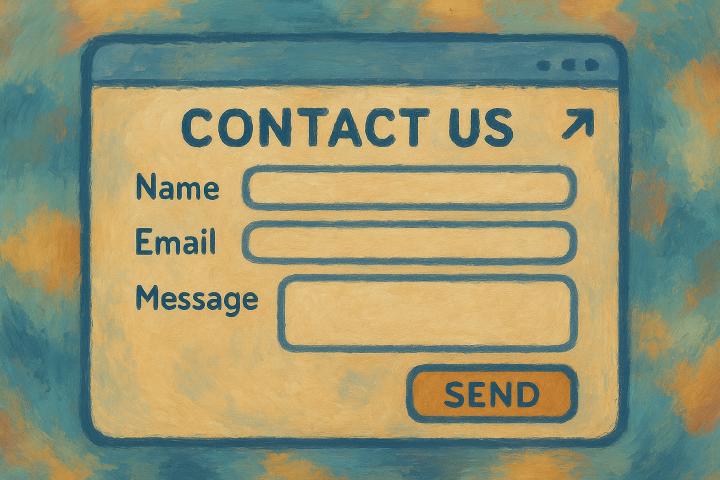
An HTML form on your website can submit messages to an Aamu Database table. Your team can review each submission and create follow-up tasks or email notifications.
Use the public Forms endpoint as the form’s submission target. It accepts submissions for the configured table without exposing a database API key in browser code.
What we are building
The flow is:
Website form
  -> Aamu Forms endpoint
  -> Aamu Database row
-> optional automation, task, email, or follow-up workflowFor a contact form, the database usually has fields such as Name, Email, and Message. When someone submits the form, Aamu creates a new row with those values.
Ingredients
You need:
an Aamu Database for storing contact form submissions,
Forms enabled for that database,
a table selected as the destination for submissions,
the Forms endpoint URL from the database settings, and
an HTML form on your website.
You can use your own HTML or start from the example repository at https://github.com/AamuApp/contact-form.
Create the database
Create a database in Aamu.app for the submissions. If the contact form template is available in your workspace, use it as a starting point. Otherwise, create a simple table yourself.
For a basic contact form, the table can be as small as:
NameEmailMessage
You can add more fields later, such as Company, Phone, Subject, Source page, or Consent, depending on what your site needs to collect.
Enable Forms
Open the database settings and enable Forms. Select the table where form submissions should be stored. Aamu will show a Forms endpoint for that table.
Copy that endpoint and use it as the form's action URL. The endpoint is the public submission target. Do not put your database API key into the form HTML.
The basic HTML form
A basic form needs these elements:
<form action="FORMS_ENDPOINT_HERE" method="POST" enctype="multipart/form-data">
  <input type="hidden" name="redirect-success" value="https://example.com/thank-you">
  <input type="hidden" name="redirect-error" value="https://example.com/form-error">

  <label>
    Name
    <input name="name" type="text" autocomplete="name" required>
  </label>

  <label>
    Email
    <input name="email" type="email" autocomplete="email" required>
  </label>

  <label>
    Message
    <textarea name="message" required></textarea>
  </label>

  <button type="submit">Send</button>
</form>Replace FORMS_ENDPOINT_HERE with the endpoint from your Aamu database settings. Replace the redirect URLs with pages on your own site.
How field names map to database fields
The form input names need to match the database field bindings. In the simple example above:
namemaps toName,emailmaps toEmail, andmessagemaps toMessage.
Aamu shows the correct form field names in the database Forms settings. Use those generated names when you build your form. As a rule of thumb, field names are usually lowercase and spaces become underscores, but the settings screen is the source of truth.
Redirects and progressive enhancement
The hidden redirect-success and redirect-error fields let the form work without JavaScript. If the visitor's browser submits the form normally, Aamu can redirect the visitor to the right page after success or failure.
You can also submit the form with JavaScript for a smoother experience, but it is still good to keep the plain HTML form working. That gives you a robust fallback and makes the form easier to test.
Submitting with JavaScript
If you want to avoid a full page reload, submit the form with fetch and FormData:
const form = document.querySelector('form');

form.addEventListener('submit', async (event) => {
  event.preventDefault();

  const response = await fetch(form.action, {
    method: 'POST',
    body: new FormData(form)
  });

  if (!response.ok) {
    throw new Error('Form submission failed');
  }

  form.reset();
});Security notes
A public contact form receives public internet traffic, so treat it as an input surface.
Do not publish a database API key in your form or frontend JavaScript.
Collect only the information you actually need.
Use appropriate consent text if the form collects personal data.
Validate important fields in the browser for usability, but remember that server-side validation is what matters.
Consider anti-spam measures if the form is published on a high-traffic site.
The Forms endpoint is safer than using the GraphQL database API from the browser because it is limited to accepting submissions for the configured form target.
What happens after submission?
Each submission becomes a database row that your team can review, assign follow-up work to or use in an integration.
For example, you can:
review submissions in the database,
create an automation that sends an email notification,
create a task for follow-up,
use the row as part of a customer workflow, or
connect later reporting or integrations through the database API.
The follow-up article on database automations shows how to send an email when a new contact form row is inserted.
Testing
After the form is in place, submit a test message from the public page. Then open the Aamu database and confirm that a new row appears with the expected field values.
If the row does not appear, check these first:
the form
actionpoints to the current Forms endpoint,Forms are enabled for the database,
the correct destination table is selected,
the input
nameattributes match the field bindings, andrequired fields are actually included in the submitted form.