Building with the Aamu API: From Tasks to Files and GraphQL
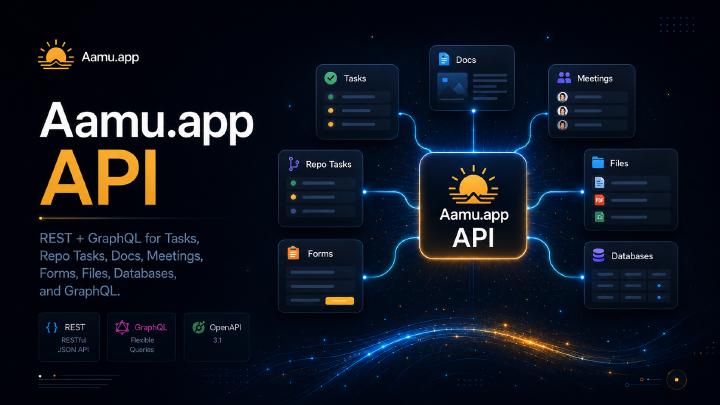
Aamu now exposes a broad project API for teams and AI agents that need to create, read, and update real work inside Aamu. The API is designed around the same building blocks people use in the UI: tasks, docs, meetings, forms, files, databases, and database rows through GraphQL.
The API is described by an OpenAPI document at /.well-known/openapi.json. That makes it easy for humans to inspect the available endpoints, and easy for AI tools to discover how to call them.
Authentication and project scope
Every request uses a Team API key in the x-api-key header. Most resources are project-scoped, so requests commonly include x-project-id as well. When an API key only has one project scope, the project can often be inferred, but including the header keeps integrations explicit and predictable.
GET /api/v1/tasks/
x-api-key: YOUR_API_KEY
x-project-id: YOUR_PROJECT_IDAPI keys can be limited by feature and permission. For example, a key can be allowed to read docs, create tasks, submit forms, or upload files only inside selected projects.
Tasks and comments
The Tasks API is useful for turning external events, AI plans, or support workflows into actionable project work. You can list tasks, create tasks, update task content, and add comments.
POST /api/v1/tasks/
Content-Type: application/json

{
  "title": "Review API integration",
  "html": "<p>Check the integration logs and update the rollout note.</p>"
}Task comments use the same HTML-oriented content model:
POST /api/v1/tasks/{id}/comments

{
  "html": "<p>The first test upload completed successfully.</p>"
}Docs as API-created knowledge
The Docs API lets integrations create durable written material directly into Aamu. This is a natural fit for AI-generated summaries, runbooks, meeting notes, release notes, customer handoff documents, and internal knowledge articles.
POST /api/v1/docs/

{
  "title": "Weekly API Report",
  "html": "<h1>Weekly API Report</h1><p>All checks passed.</p>"
}Docs can also be fetched and updated later. The API accepts HTML, which maps cleanly to Aamu’s editor content.
Meetings
The Meetings API can create and update project meetings. It supports common fields such as name, HTML description, start time, end time, and invitee emails. That makes it possible for an agent to schedule a follow-up discussion after preparing the context in tasks or docs.
POST /api/v1/meetings/

{
  "name": "API rollout review",
  "html": "<p>Review integration status and next steps.</p>",
  "start_time": 1779458400000,
  "end_time": 1779462000000
}Forms and submissions
The Forms API separates public browser form submissions from authenticated API use. Integrations can list forms, read a form’s database-backed fields, and submit a new response.
GET /api/v1/forms/{id}A form submission creates a database row through the form’s table mapping:
POST /api/v1/forms/{id}/submissions

{
  "fields": {
    "email": "person@example.com",
    "message": "I would like to hear more."
  }
}Field values can be sent using the field’s GraphQL name, database column id, or display name when available.
Files for editor content
Aamu’s UI editor uses relative file URLs such as /file/browser/{filepointer_id}/{file_version_id}/{name}. The Files API follows the same pattern, which keeps API-created content compatible with the editor.
The upload flow has three steps:
- Call
POST /api/v1/files/prepare-uploadwith the file name, MIME type, and size. - Upload the bytes to the returned signed
PUTURL. - Call
POST /api/v1/files/complete-uploadwith the returned completion payload.
The completed response includes both browser_url and download_url. The browser URL can be inserted into document or task HTML:
<img src="/file/browser/FILEPOINTER_ID/FILE_VERSION_ID/image.png">Tasks, docs, and comments can also include a files array so the uploaded files are tracked as attachments alongside the HTML content.
Databases and GraphQL
The REST Database API is responsible for creating databases and changing table schema. Row data is handled through the generated GraphQL API. This split is useful for AI agents: REST gives a simple way to set up structure, and GraphQL gives a discoverable, typed way to work with rows.
1. Create a database
Start by creating a database inside a project. The request uses the project-scoped Database write permission and the x-project-id header.
POST /api/v1/databases/
x-api-key: YOUR_API_KEY
x-project-id: YOUR_PROJECT_ID
Content-Type: application/json

{
  "name": "Customer feedback"
}The response includes the new database id and the first table id. Keep both values: the database id is used as x-db-id for GraphQL, and the table id is used when adding columns.
{
  "database": {
    "id": "DB_ID",
    "pid": "PROJECT_ID",
    "name": "Customer feedback",
    "tables": ["TABLE_ID"],
    "table_id": "TABLE_ID"
  }
}2. Add columns
Next, define the table schema. Columns can be added one at a time or as an array. Useful column types include text, longtext, number, status, checkbox, timedate, timeline, tags, file, files, and document.
POST /api/v1/databases/{dbId}/tables/{tableId}/columns
x-api-key: YOUR_API_KEY
Content-Type: application/json

{
  "columns": [
    {
      "name": "Customer",
      "type": "text",
      "gtype": "customer"
    },
    {
      "name": "Message",
      "type": "longtext",
      "gtype": "message"
    },
    {
      "name": "Status",
      "type": "status",
      "gtype": "status",
      "values": [
        { "name": "New", "value": "new", "color": "cornflowerblue" },
        { "name": "Reviewed", "value": "reviewed", "color": "forestgreen" }
      ]
    },
    {
      "name": "Source document",
      "type": "document",
      "gtype": "sourceDocument"
    }
  ]
}The gtype value becomes the GraphQL field name. If you omit it, Aamu generates one from the column name, but explicit names make integrations easier to maintain.
3. Discover the GraphQL schema
Once columns exist, the database has a generated GraphQL schema. Send x-db-id with GraphQL calls so Aamu knows which database schema to use.
POST /api/v1/graphql/
x-api-key: YOUR_API_KEY
x-db-id: DB_ID
Content-Type: application/json

{
  "query": "query IntrospectionQuery { __schema { queryType { fields { name } } mutationType { fields { name } } } }"
}For AI agents, introspection is especially useful. The agent can inspect available query and mutation names before constructing row operations.
4. Add data with GraphQL
After the schema is generated, create rows through GraphQL mutations. Exact mutation names are generated from the table schema, so introspection is the safest source of truth. A typical mutation shape looks like this:
POST /api/v1/graphql/
x-api-key: YOUR_API_KEY
x-db-id: DB_ID
Content-Type: application/json

{
  "query": "mutation CreateFeedback($input: FeedbackInput!) { createFeedback(input: $input) { id customer message status sourceDocument } }",
  "variables": {
    "input": {
      "customer": "Ada Lovelace",
      "message": "The onboarding flow was clear.",
      "status": "new",
      "sourceDocument": "DOC_ID"
    }
  }
}The important idea is that row fields use the column gtype values. In this example, sourceDocument is a document column, and its value is a Docs id.
5. Query data with GraphQL
Rows can be fetched through GraphQL queries. Again, exact query names depend on the generated schema, but the fields are based on your columns.
POST /api/v1/graphql/
x-api-key: YOUR_API_KEY
x-db-id: DB_ID
Content-Type: application/json

{
  "query": "query ListFeedback { feedbackRows { id customer message status sourceDocument } }"
}For larger integrations, use variables for filters, pagination, and sort arguments when the generated schema exposes them. The recommended workflow is: create schema with REST, introspect GraphQL, then query or mutate rows with the discovered field names.
Using Databases and Docs together
Docs and Databases work well together. A database can hold structured state, while Docs can hold rich long-form context. The bridge between the two is the document column type: its value is the id of a Docs document.
Create the document first
For example, an integration might create a detailed customer interview note as a Doc:
POST /api/v1/docs/
x-api-key: YOUR_API_KEY
x-project-id: YOUR_PROJECT_ID
Content-Type: application/json

{
  "title": "Interview notes: Ada Lovelace",
  "html": "<h1>Interview notes</h1><p>Ada liked the onboarding flow and asked for more examples.</p>"
}The response includes the document id:
{
  "doc": {
    "id": "DOC_ID",
    "title": "Interview notes: Ada Lovelace"
  }
}Store the Doc id in a database row
Then store that DOC_ID in a database row using a column whose type is document.
{
  "input": {
    "customer": "Ada Lovelace",
    "message": "Asked for more examples.",
    "status": "reviewed",
    "sourceDocument": "DOC_ID"
  }
}This gives you a compact structured row that can be filtered, sorted, and queried, while preserving the full narrative in a rich Docs document.
Fetch structured data, then fetch the Doc
A client or AI agent can first query the database row:
POST /api/v1/graphql/
x-db-id: DB_ID

{
  "query": "query { feedbackRows { id customer status sourceDocument } }"
}Then it can fetch the linked document when it needs the full context:
GET /api/v1/docs/DOC_ID
x-api-key: YOUR_API_KEY
x-project-id: YOUR_PROJECT_IDThis pattern is useful for CRM notes, research summaries, incident reports, product feedback, interview notes, project decisions, and any workflow where a table needs to reference rich text.
Why this works well for AI agents
The Aamu API is intentionally close to the product model. An AI agent can create a task, attach files, write a doc, schedule a meeting, submit a form response, or work with structured database rows without inventing a parallel workflow.
The OpenAPI document gives the agent a map of the available operations, while scoped Team API keys keep access narrow. That combination makes the API useful for automation without making it too broad by default.
A practical starting point
For most integrations, the best first step is to generate a Team API key with the smallest useful set of project and feature scopes. Then call the OpenAPI document, inspect the schemas, and start with one workflow: create a task, write a doc, or upload a file and reference it from editor HTML.
From there, the same API surface can grow into richer workflows that use tasks for action, docs for knowledge, forms for input, files for context, meetings for coordination, and GraphQL databases for structured state.